


04
Dec
Windows 8 DNS Configuration
Comments
Step 1
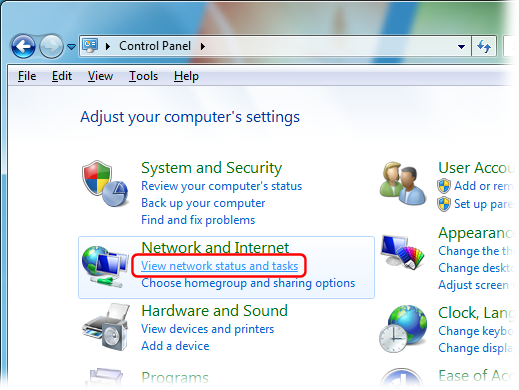
In the Windows Control Panel, under “Network and Internet”, select “View network status and tasks”:
Step 2
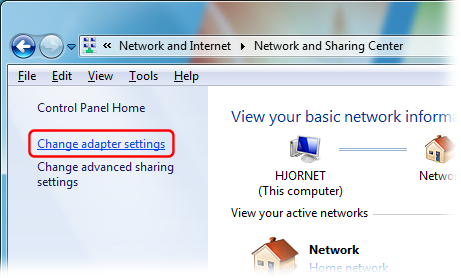
Click “Change adaptor settings”:
Step 3
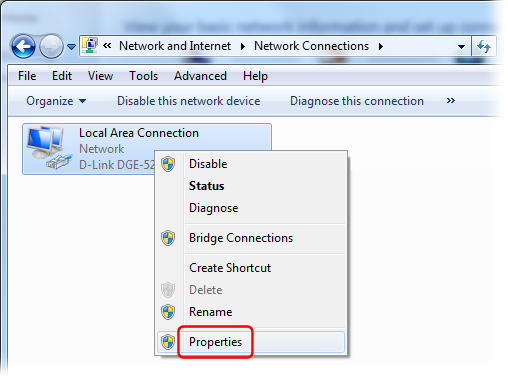
Right-click your Internet connection’s icon and select “Properties”:
Step 4
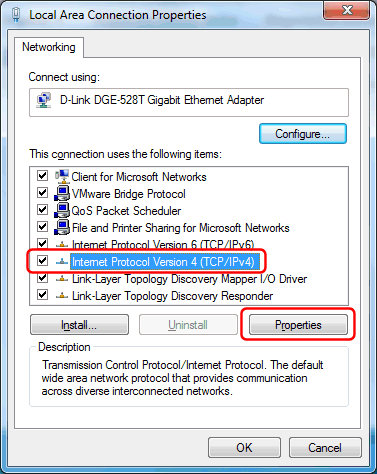
Select the “Internet Protocol Version 4 (TCP/IPv4)” item, and click the “Properties” button:
Step 5
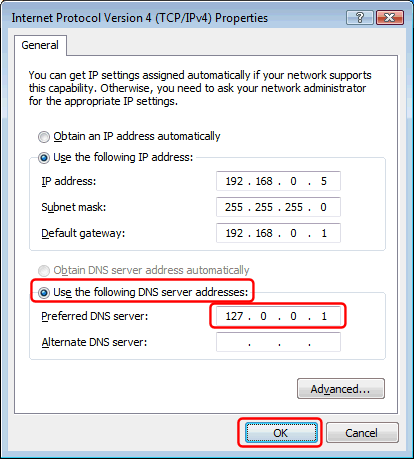
Check “Use the following DNS server addresses” and enter the IP address of the two nearest DNSFlex DNS servers in the Preferred and Alternate DNS server field respectively:
Step 6
Finally click the “OK” button in this and the previous dialog to save your changes.
